For professors

Teach the class.Not the paperwork.

Open Professor Mode

Professor Mode holds the whole class in one place: your units, lessons, slides and documents; every student and how they are doing; what has been handed in and what is overdue; your announcements, and your week.

Works with what you already upload
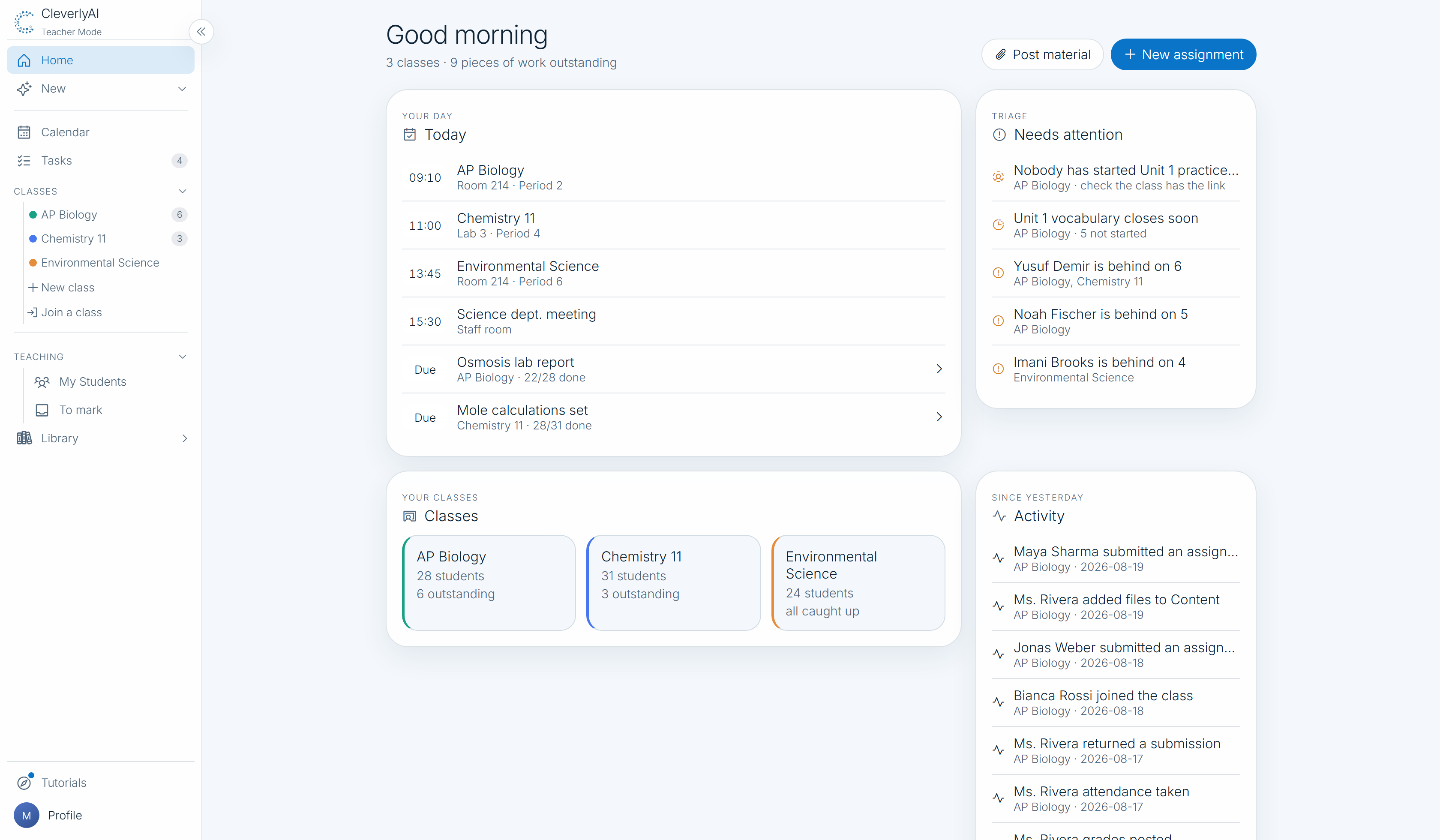
CleverlyAI Professor Mode home showing today's periods, work that needs attention, class cards, and recent class activity

One placefor every class you teach

One uploadbecomes the course and the study tools

One glanceat who is behind

Material in. A course out.

Upload what you already teach from.
Hand your class a course.

Drag in PDFs, slide decks, documents, video, or link a Google Doc, Slides or Drive file. File it into units and lessons, then turn any of it into cue cards, a practice test, a guided course or notes — without leaving the class.

See your students
01

Units, lessons, and the real files

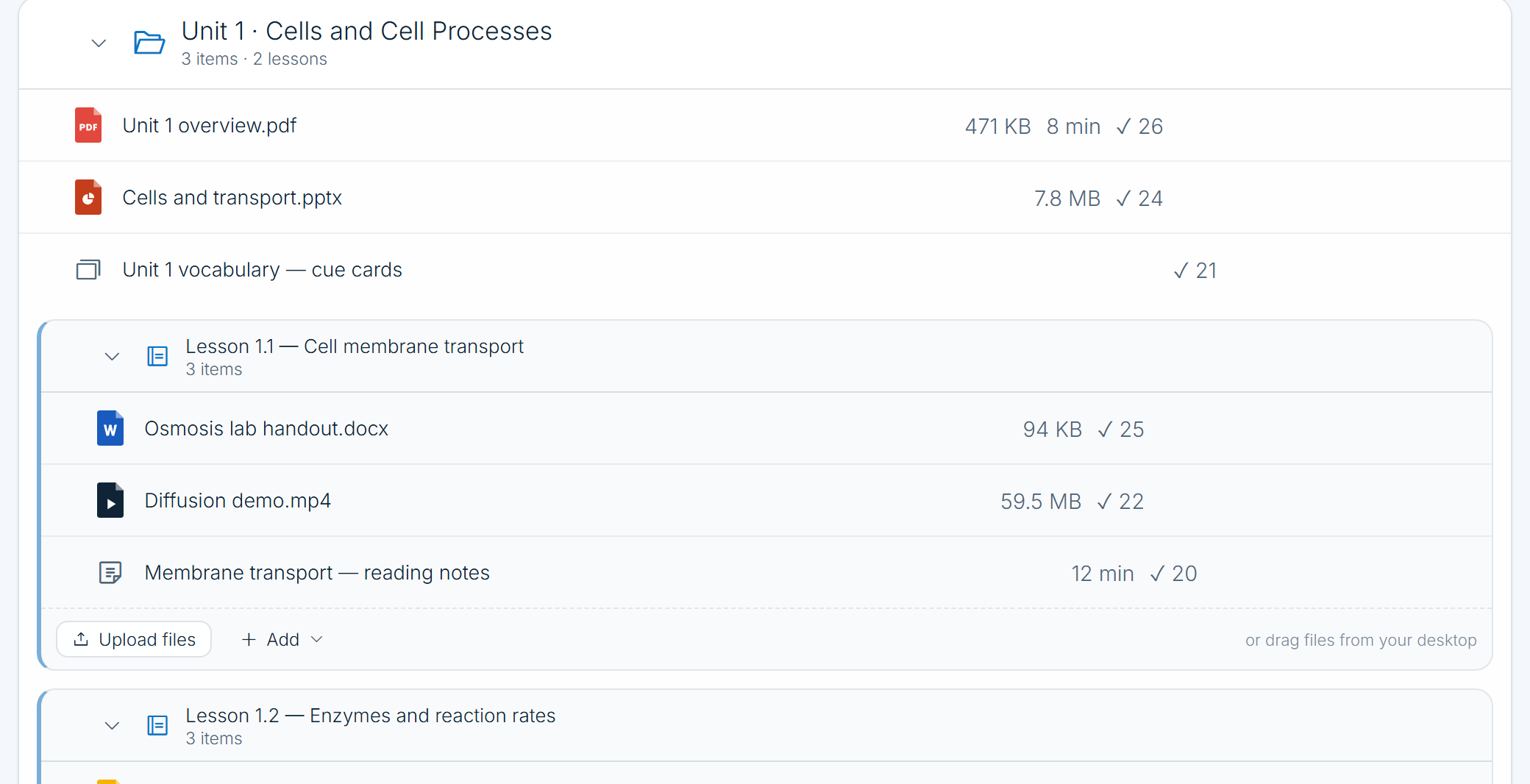
The shape professors already use: a unit, the lessons inside it, and the material inside those. Drop files straight onto a unit to file them there.

  • PDFs, slides, docs, images, audio and video
  • Google Docs, Slides, Sheets and Drive files, by link or picker
  • Hide a unit until you're ready, or open it on a date
Unit 1 in a CleverlyAI class, holding a PDF, a slide deck, a cue-card set and a lesson with a handout, a video and reading notes
Your course, filedUnits, lessons, and the files themselves

One click

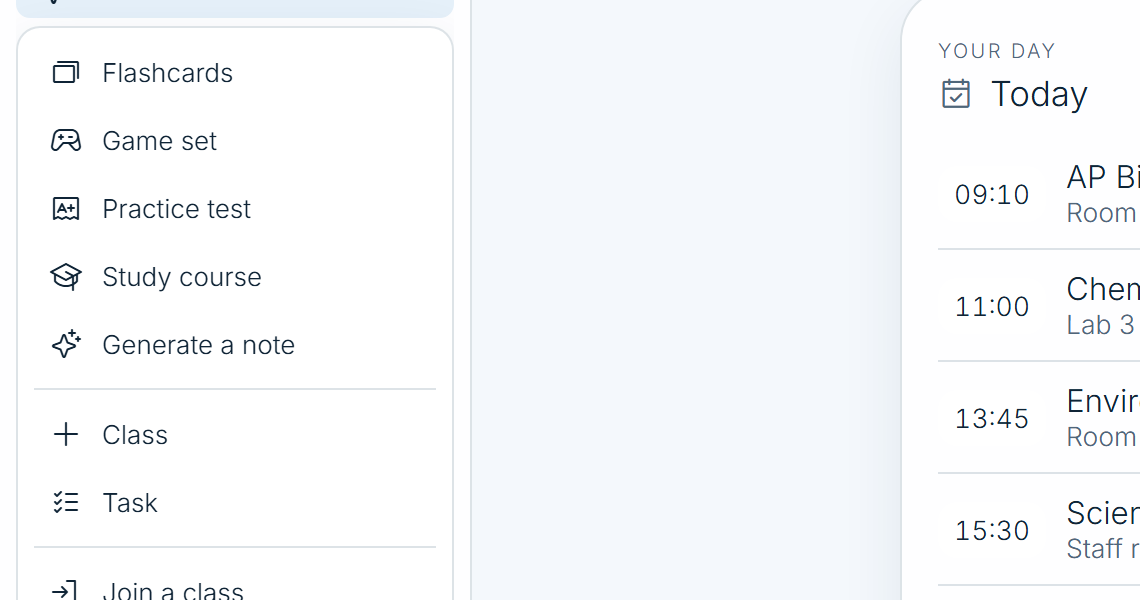
The New menu in Professor Mode offering flashcards, a game set, a practice test, a mini lesson and a generated note
Turn it into study materialFrom any file, or from a topic

Turned into

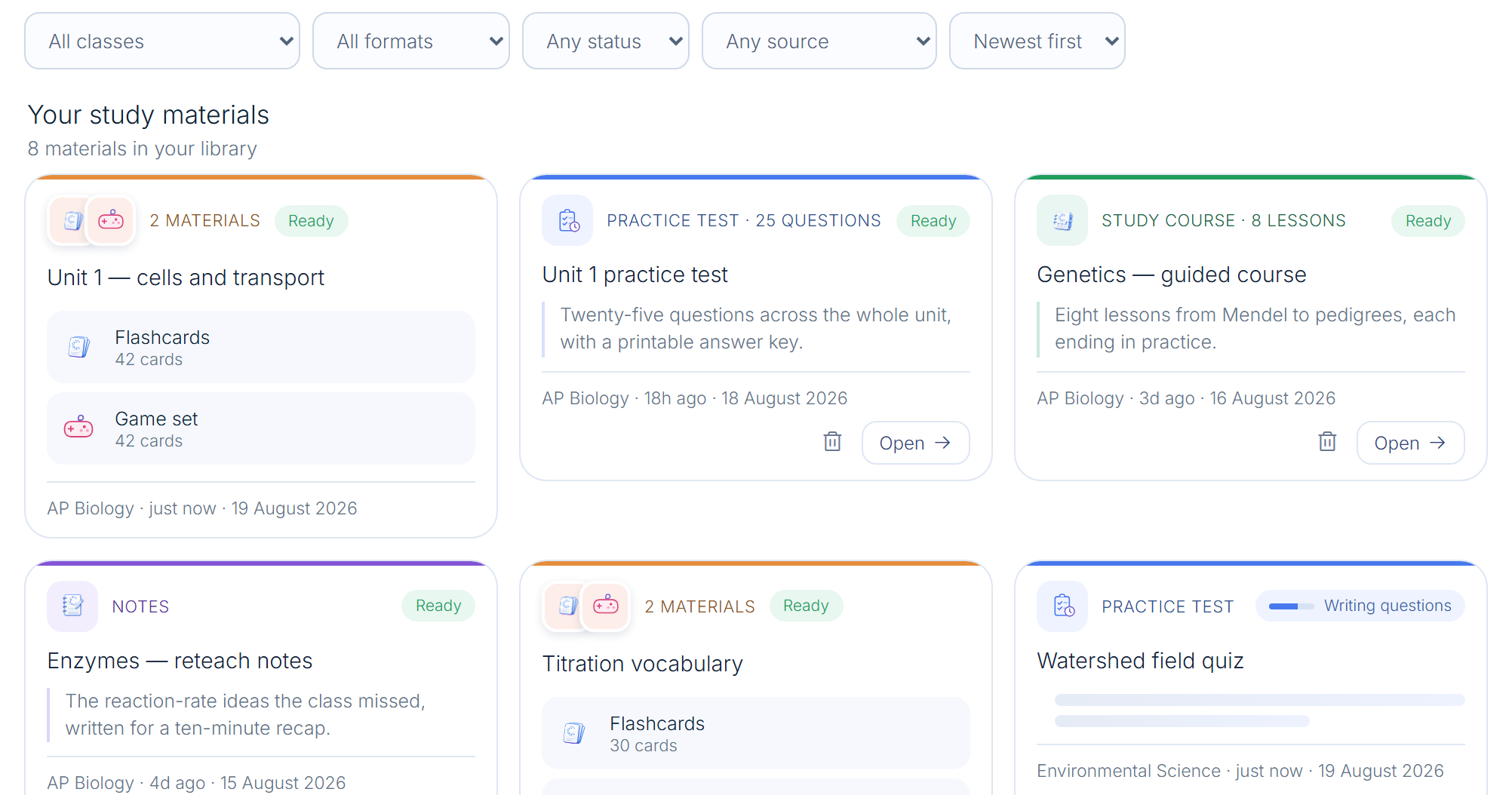
A professor's CleverlyAI library holding flashcards, a game set, a practice test, a guided mini lesson and reteach notes
Cards, tests, courses, notesReady to assign or to play live
The class, and the people in it

Every student you teach.
On one page.

Open a class to see the room. Or step back and see every student across every class you teach, with the ones falling behind at the top.

See what's been handed in
02

The class list, with the numbers on it

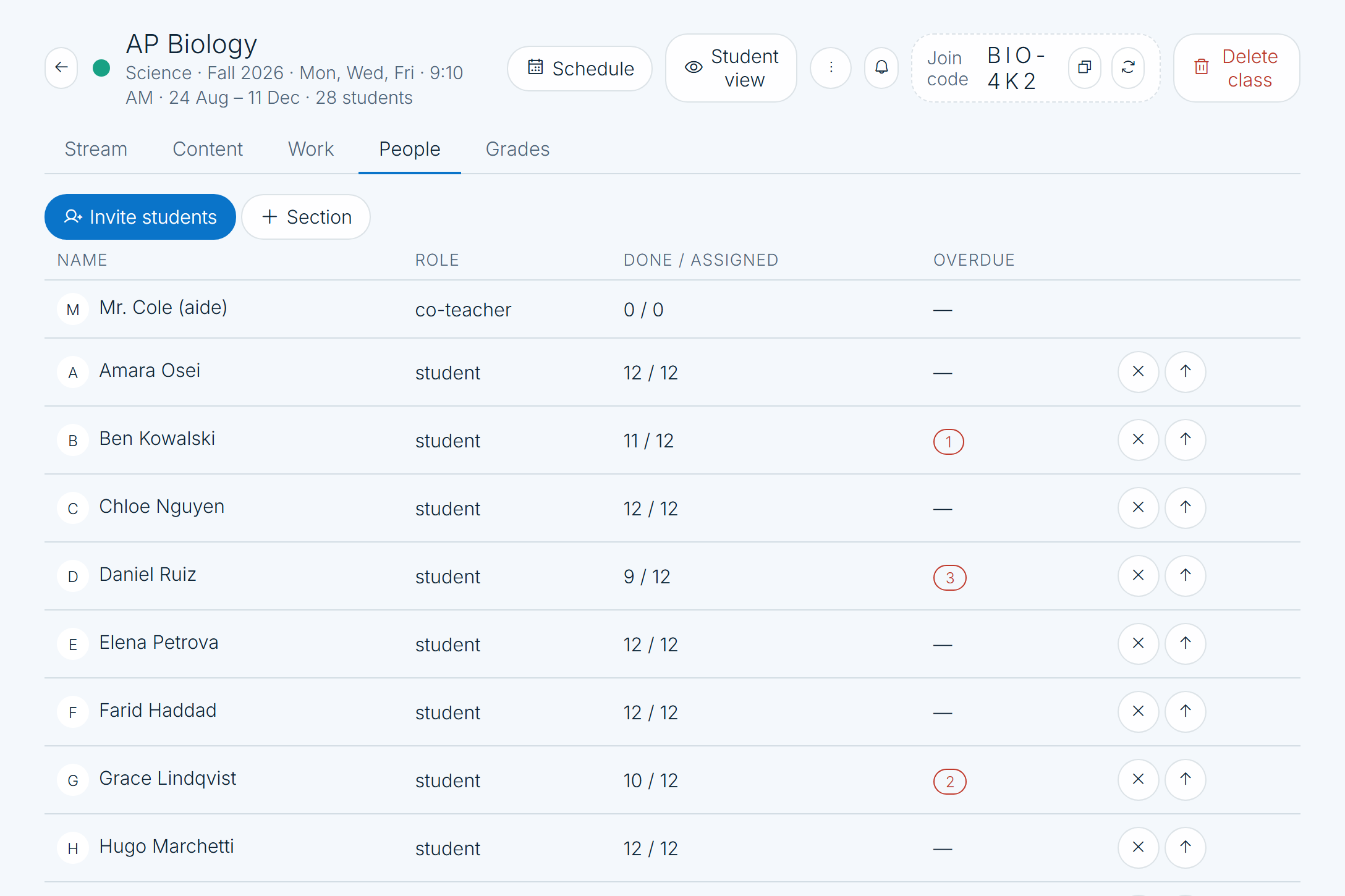
Names, roles, how much of the assigned work each person has done, and how many pieces are overdue. Invite by email or hand out a join code.

  • Done / assigned and overdue, per student
  • Sections, co-professors, and accommodations
  • Click a name for one student's whole picture
A CleverlyAI class roster listing every student with their role, work completed out of work assigned, and overdue count
Who is in the room, and how far along each of them is.
03

Or the person, across every class

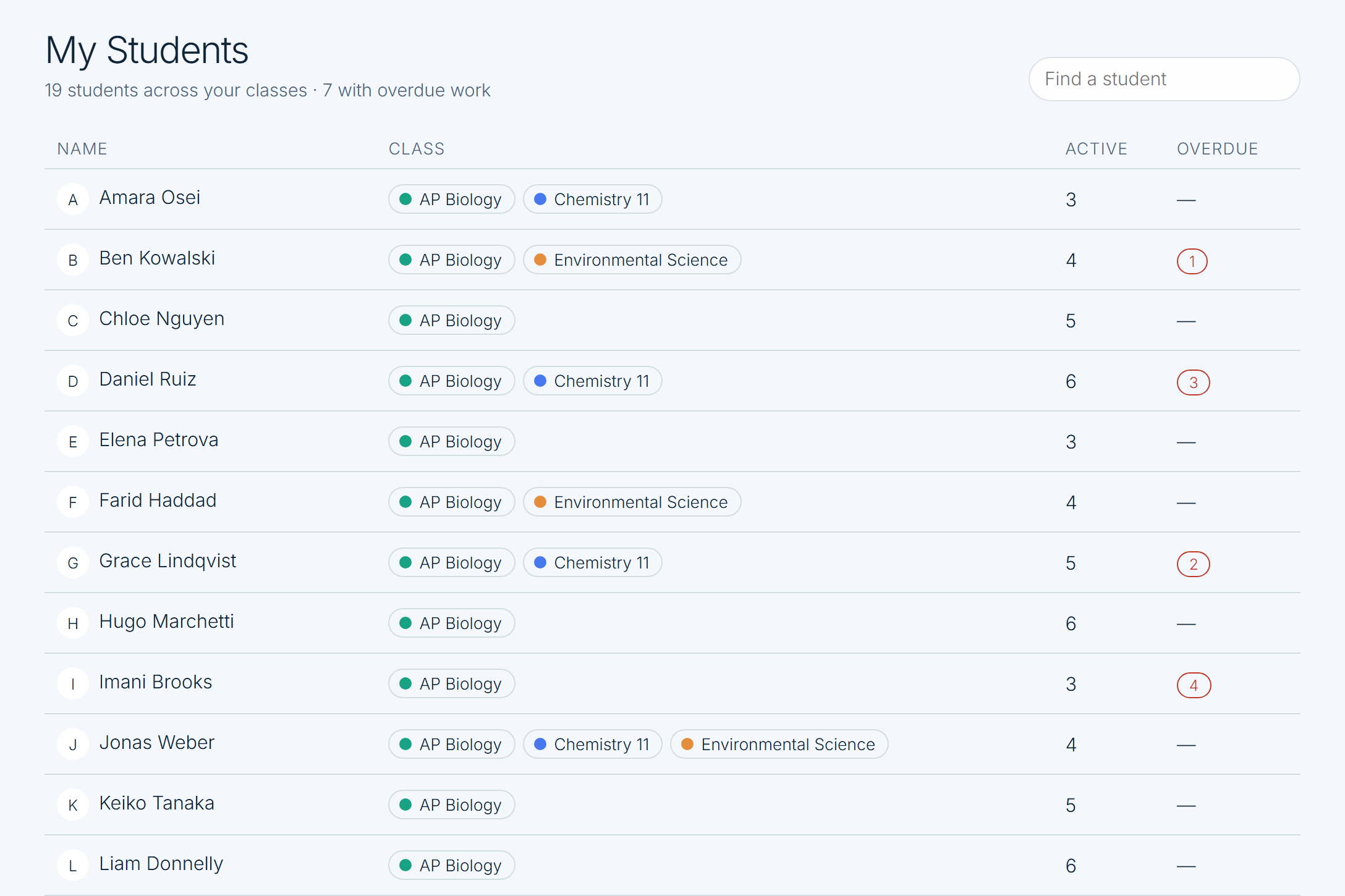
"How is Imani doing?" is one question. My Students answers it once, instead of making you open five classes to piece it together.

  • One row per person, not per seat
  • Every class they're in, colour-coded
  • Search by name or by class
The My Students page listing 19 students across three classes with their active work and overdue counts
Everyone you teach, with the overdue count next to their name.
Who's done it, who hasn't

Stop chasing hand-ins.
The list is already made.

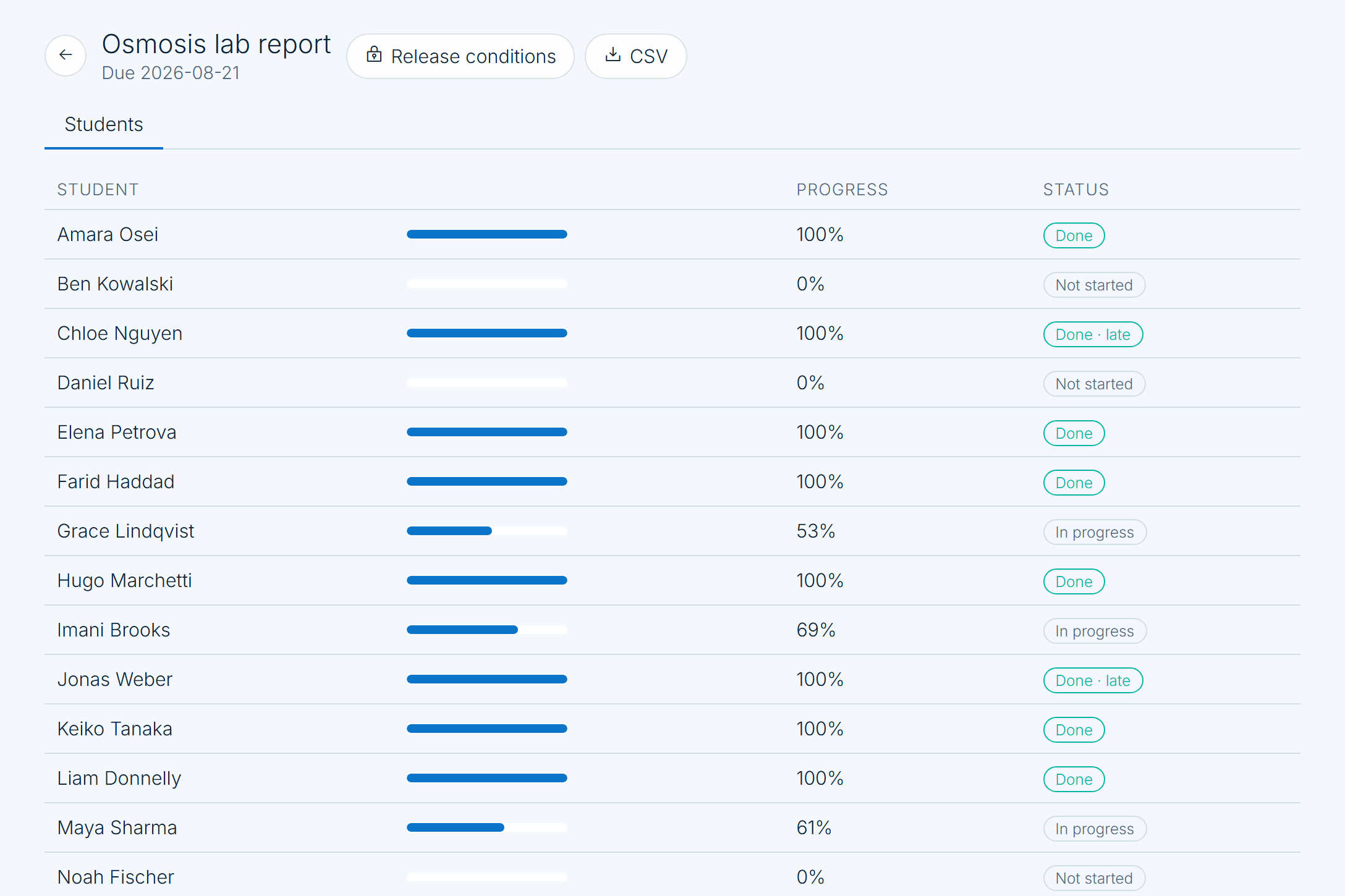
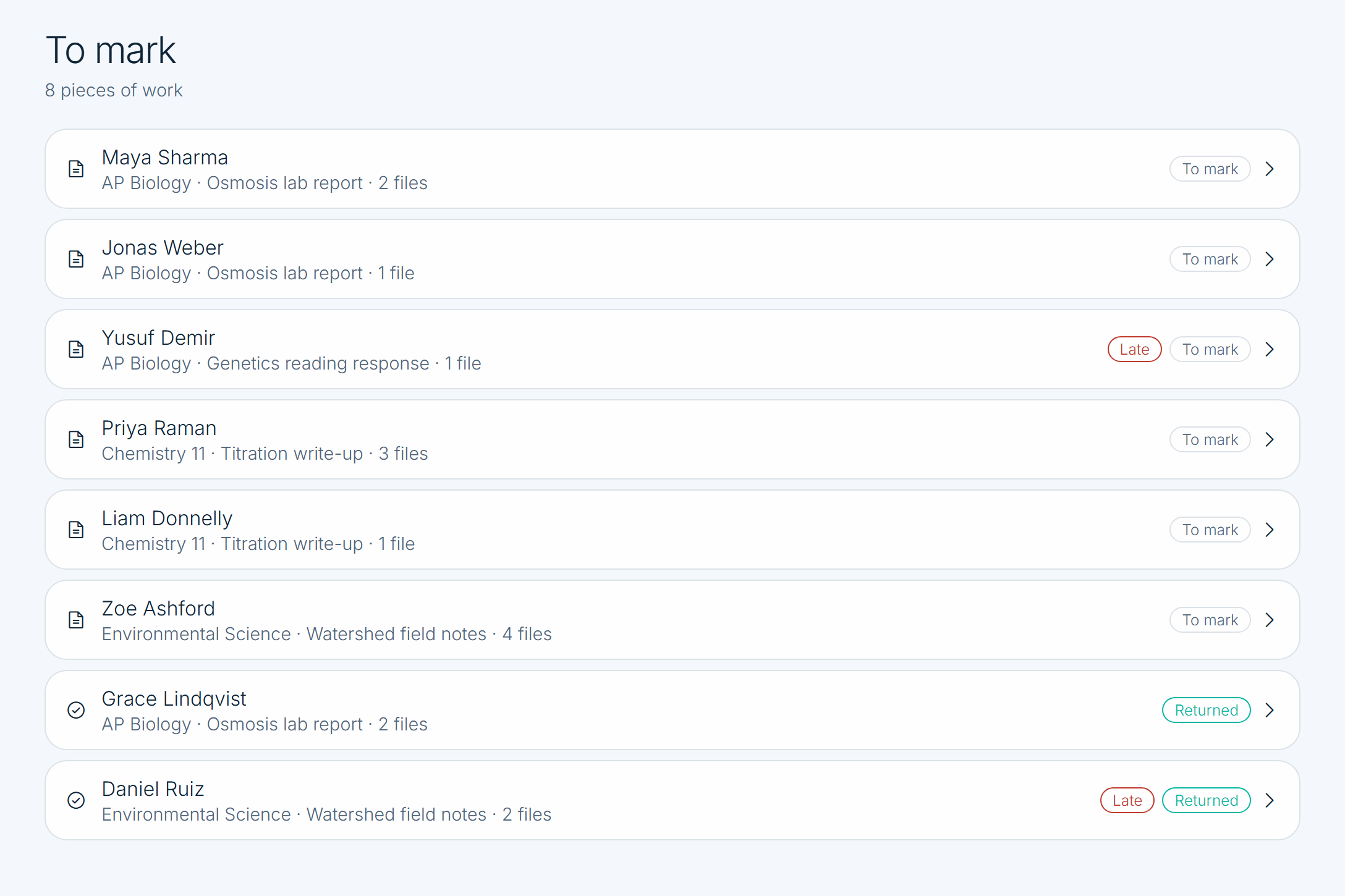
Every assignment keeps its own progress report, and everything waiting to be marked — across every class — collects in one queue with the late ones flagged.

See announcements
An assignment progress report listing each student with a progress bar and a Done, In progress or Not started status
Per assignmentDone, in progress, not started — and who was late.
The cross-class To mark queue listing submitted work with Late and Returned tags
Across every classOne queue for everything waiting on you.

Set the workHand-in, quiz, study set or practice test

Watch it landProgress updates as the class works

Mark it in one placeOpen, comment, grade, return

Say it once

Post it to the class.
See who read it.

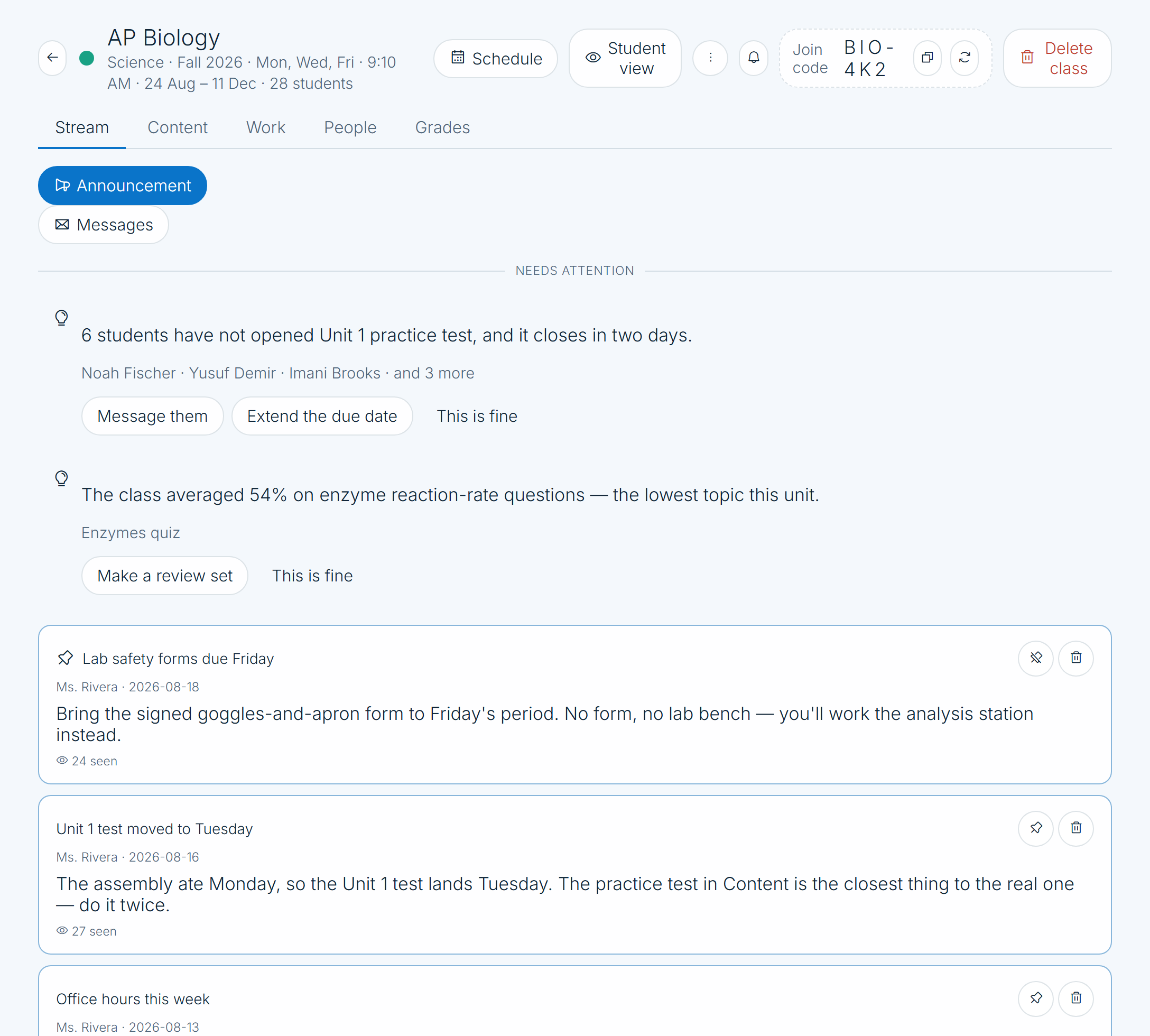
Announcements sit at the top of the class stream, pinned if they matter, with a seen count so you know the message landed. Underneath, the stream keeps the record of what was posted, submitted, returned and marked.

See your week
A class stream with a pinned announcement about lab safety forms, a second announcement, seen counts, and two attention cards above them
Announcements, pinned and counted — and the class's own record underneath.

Pin what mattersIt stays at the top

Know it was readA seen count, not a guess

Or message directlyOne student, a group, or guardians

Your week, and your marks

The whole timetable.
And every mark.

Your periods, your meetings, and every due date on one calendar. Marks in a grid that adds itself up, exports to CSV, and holds a column back until you're ready to post it.

See what else is in there
04

One calendar for the whole timetable

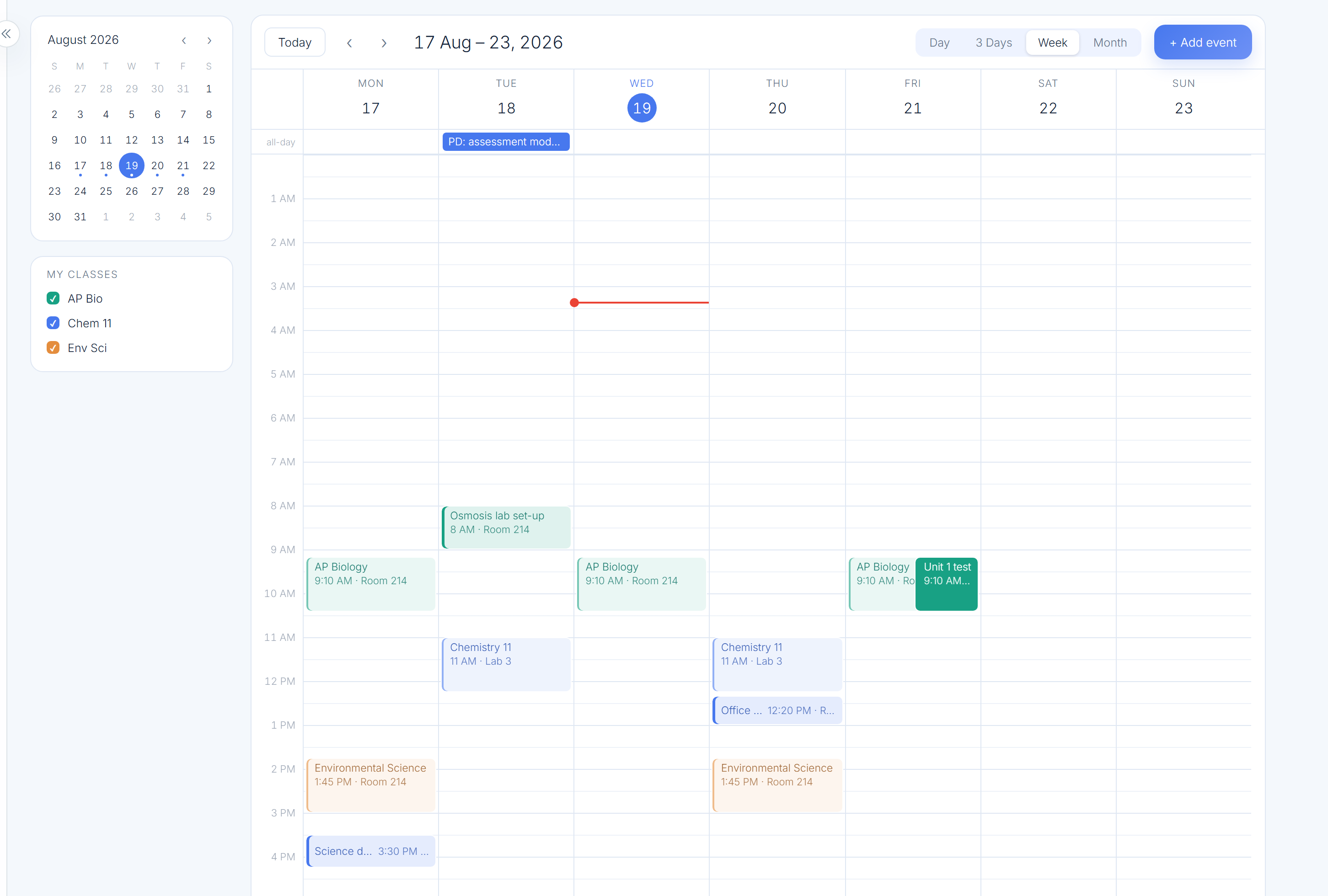
Class periods come from the class's own schedule, so they appear once and stay right. Add a lab set-up, office hours or a department meeting beside them.

  • Day, three-day, week and month
  • Filter by class, or hide one for a week
  • Two-way sync with Google Calendar
A professor's week in CleverlyAI: AP Biology, Chemistry and Environmental Science periods, a lab set-up, office hours and a department meeting
Periods, deadlines and the rest of the week in one grid.
05

A gradebook, not a spreadsheet

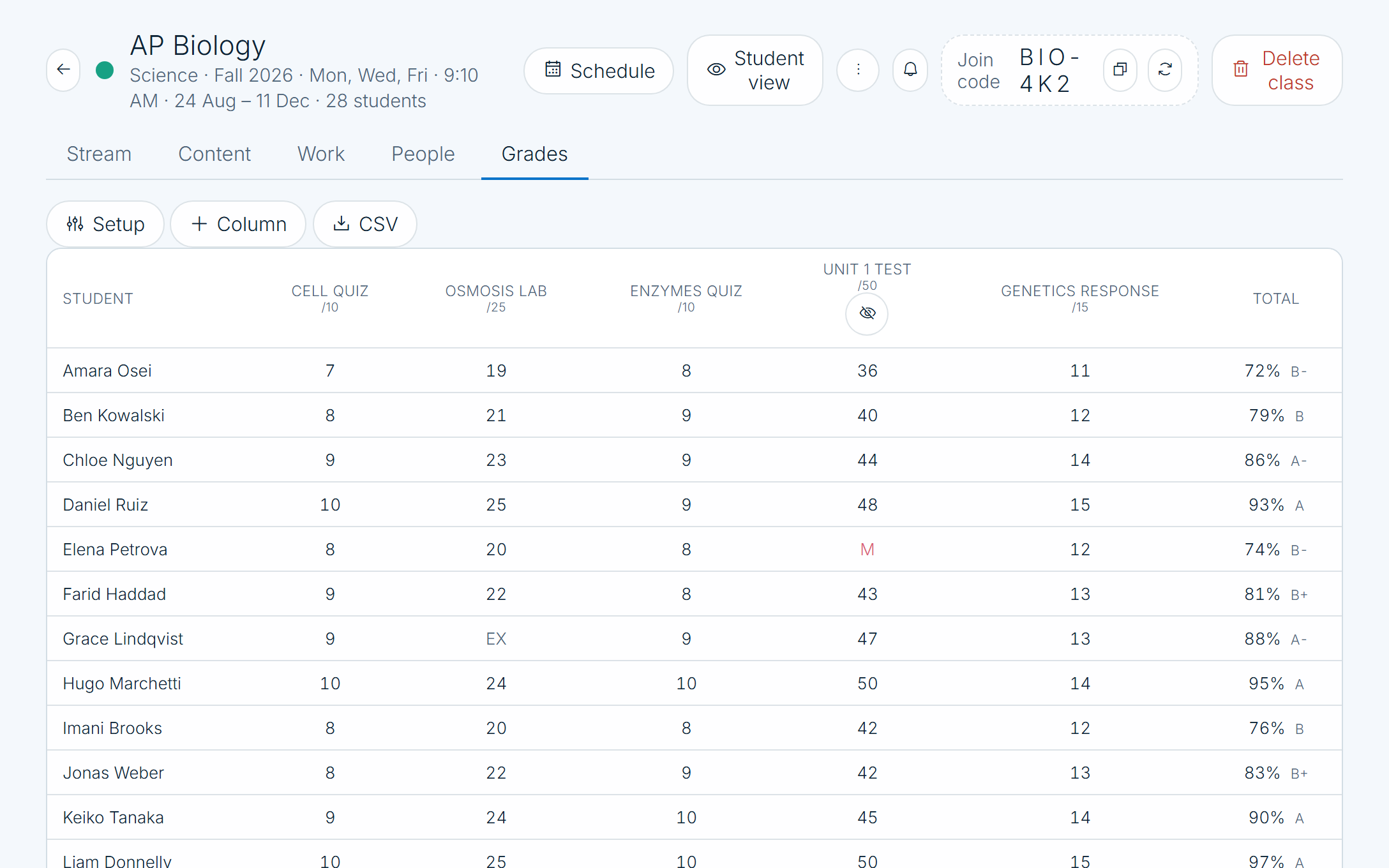
Assignments with points make their own column. Type a mark and press Enter. M is missing, EX is excused, and the total keeps itself current.

  • Points or weighted categories
  • Hold marks back, then post them all at once
  • Class average per column, CSV out
A CleverlyAI gradebook grid with columns for each assessment, per-student totals and letters, and a class average row
Every mark for the class, with the totals already done.
And the rest of the job

Attendance, groups,
discussions. One menu away.

The parts of teaching that usually live in six different tabs are one menu away from the class you were already looking at.

See live games
06

One menu, the rest of the job

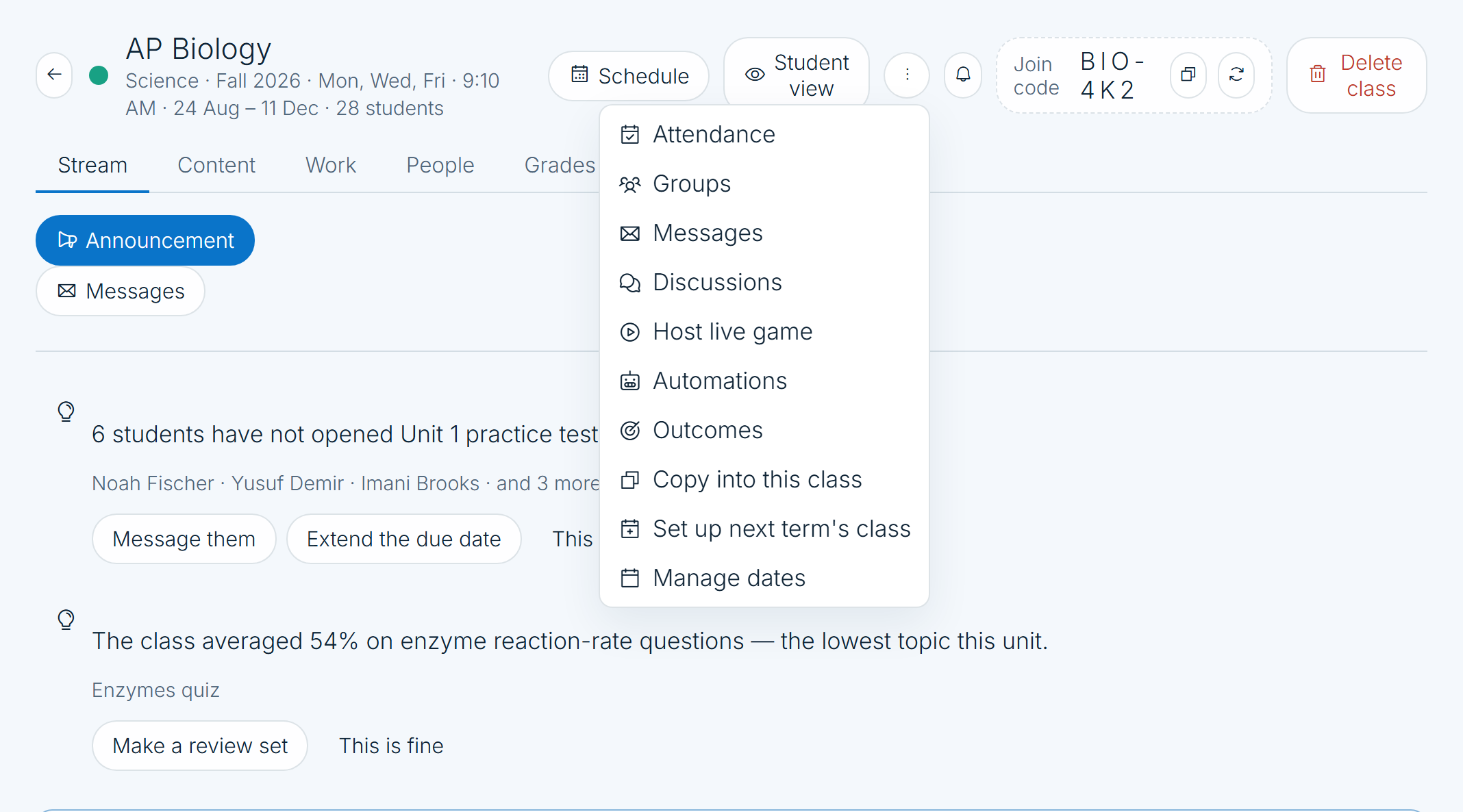
Take the register. Put the class into groups. Message a student, a group, or their guardians. Open a discussion. Copy this class into next term and shift every date with it.

  • Attendance, with each student's own rate
  • Groups, messages and discussions
  • Copy a class forward and move the dates
A class tools menu offering Attendance, Groups, Messages, Discussions, Host live game, Automations, Outcomes, Copy into this class, Set up next term's class and Manage dates
One menu on the class you already have open.
Revision the class will actually do

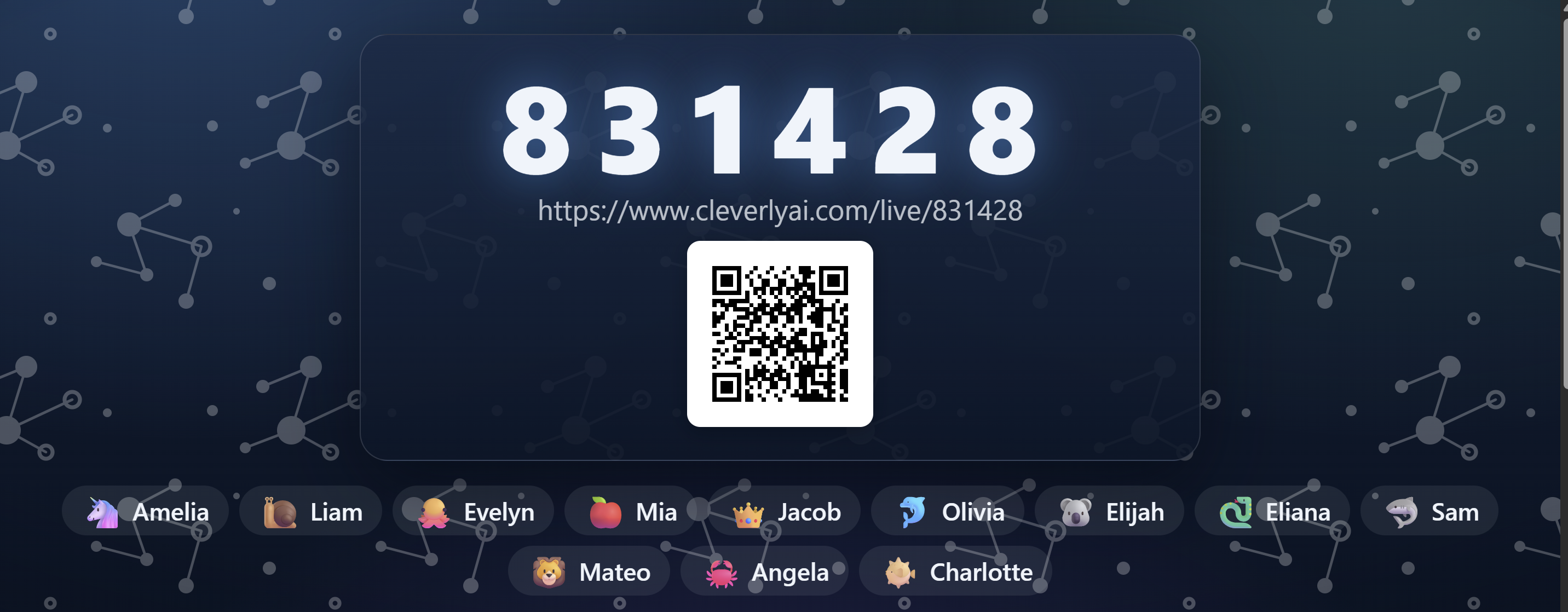
Put a code on the board.
Watch the room join.

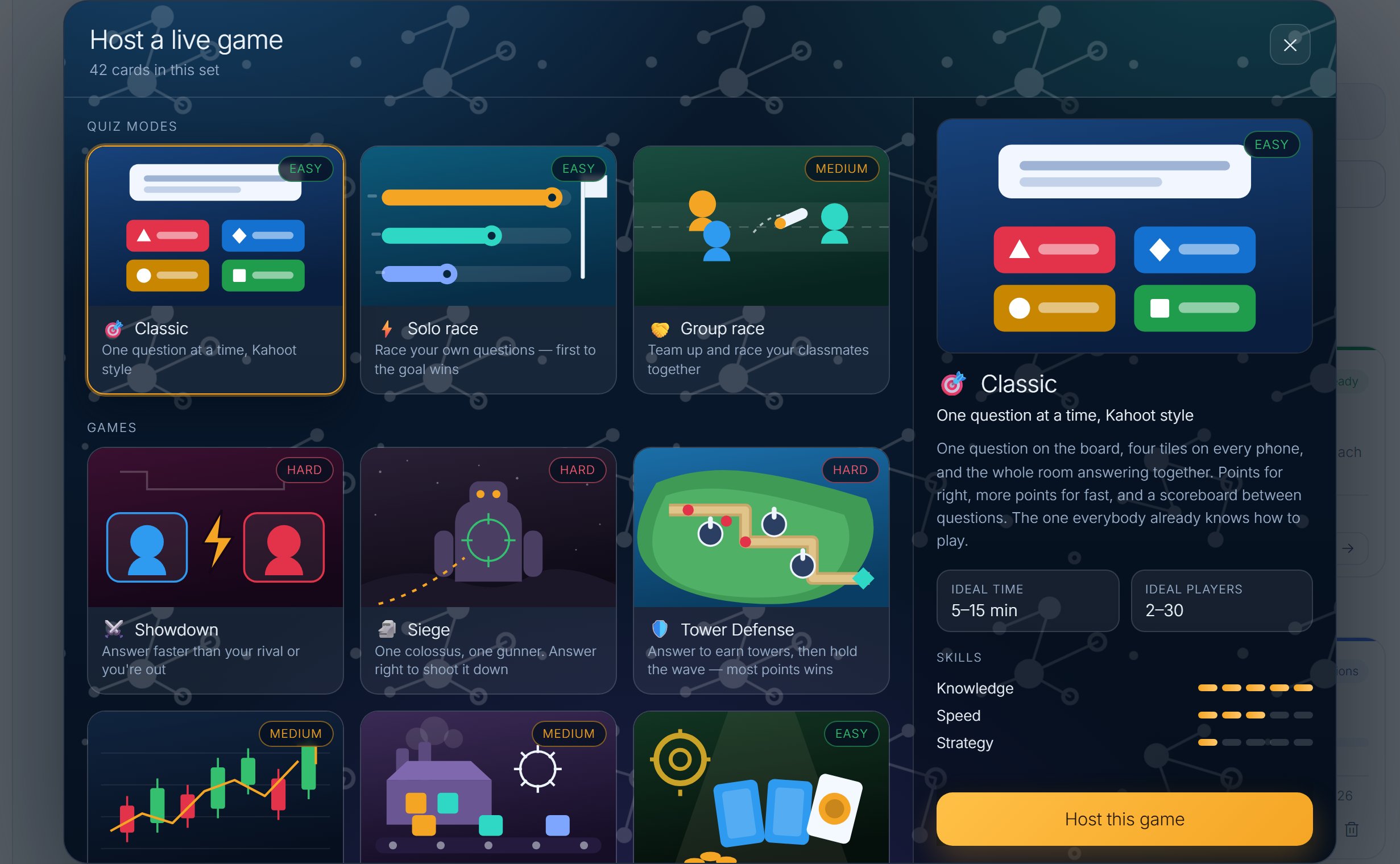
Any deck you have becomes a live game the whole class plays from their phones — a Kahoot-style round, a race, or a full strategy game. You host from your machine; they join with a code or the QR.

See how to start
The Host a live game menu showing Classic, Solo race, Group race, Showdown, Siege, Tower Defense and more, with ideal time and player count for the selected mode
Pick the mode — each one tells you its ideal time and class size.
A live game lobby on the projector: a large join code, the join link, a QR code, and twelve students who have joined
The code goes on the board. They join in seconds.

No accounts neededThey join with a code or the QR.

Your material, not a quiz you rebuiltAny deck in your library can be hosted.

See what they missedSend the missed terms straight to review.

From your files to your class

Three steps to a class that runs itself.

Get started
1

Make the class

Name it, set the timetable, and hand out the join code — or upload a syllabus and let it build the class for you.
2

Drop in your material

Drag files onto a unit, link a Google Doc, and turn any of it into cue cards, a test or a course.

3

Set the work

Give it a due date, then watch the progress land and mark it all from one queue.

Your next unit can be easier than the last one.

Stop running the class
out of six different tabs.

Professor Mode is free to start. Bring one class, one unit, and see how far it gets.